Note: This functionality is only available in systems licensed for FULL mode.
Export: Normalization View Data CSV (EXPSTN via script) is a system-level command that triggers the FMS service to export Normalization View data for a particular time range out of FMS as a .csv file. For each eligible Node the command resolves to, the service will gather the data from the specified normalization view, within the specified time range, and export it as a .csv file to a specified directory location.
You must have proper security authorization to execute this command. See FMS Security (and CMDSYS security event) for information about configuring security access for FMS commands.
Note: The resolved normalization view must be configured prior to exporting Normalization View data. See Configuring Normalization Views for more information.
See Configuring File Export Commands: Normalization View Data CSV and Running Normalization View Export Commands for more information about using this command via FMS Explorer.
See Scheduling FMS Command Tasks in the MSS for more information about scheduling commands.
See FMS ActiveX Controls and CxHmiFms for more information about using commands via FMS ActiveX controls on CygNet Studio or CygNet Vision screens.
See CxFms for more information about scripting commands.
The following command definition properties apply to Export: Normalization View Data CSV commands, when scheduling, creating, or editing commands via CygNet Explorer.
| Property | Description |
|---|---|
|
FMS service |
Select a Site.Service for the command from the available FMS service list in the drop-down menu. |
|
Command |
Select the desired Command name from the drop-down menu. See FMS Commands for more information about available command types. |
|
Priority |
Select a processing queue Priority for the command from the drop-down menu. Options from least to greatest priority are as follows.
Default value is Low level processing queue priority. |
|
Logging |
Select a Logging level for the command results from the drop-down menu. Options are as follows.
Default value is Low level logging when scheduling a command via the MSS service in CygNet Explorer. Default value is High level logging when creating or running an ad-hoc command in FMS Explorer or via the FMS service in CygNet Explorer. |
The following command parameters apply to Export: Normalization View Data CSV commands, when scheduling, creating, or editing commands via CygNet Explorer or scripting.
| Parameter | Description | Type | Usage Notes |
|---|---|---|---|
|
StnNmView |
Normalization view |
String |
Double-click to access the Enter Normalization View Name dialog box. Type the name of the normalization view to use into the text box. See Configuring Normalization Views for more information. This parameter is required. |
|
StnBeginT |
Start date |
Date |
Double-click to access the Select Start Date dialog box. Select the starting date of the time range for which to export data. See Selecting Date and Time for more information. Time of day for the start date is determined by the normalization view selected. See Note * below this table. This parameter is required. |
|
StnSEndT |
End date |
Date |
Double-click to access the Select End Date dialog box. Select the ending date of the time range for which to export data. See Selecting Date and Time for more information. Time of day for the end date is determined by the normalization view selected. See Note * below this table. This parameter is required. |
|
StnFileDir |
Directory to export CSV file |
File Directory |
Double-click to access the Enter Directory to Export CSV File dialog box. Type the directory location for the CSV export file into the text box or click ... to access the Browse for Folder dialog box, browse to the directory location. Note: The directory specified is relative to the computer hosting the FMS service. See Note ** below this table. This parameter is required. |
|
Name of CSV export file |
String |
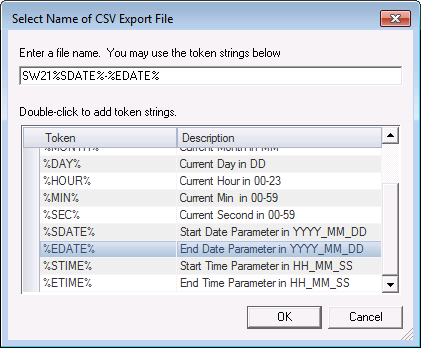
Double-click to access the Select Name of CSV Export File dialog box. Type a file name into the text box and/or use tokens to define a CSV export file name. See Note*** below this table. Important: Additional files may be generated as needed to accommodate exports containing multiple data types. File names will be appended depending on the data type being exported, e.g. gas or liquid device-level data. See Note**** below this table. This parameter is required. |
|
|
StnMarkExp |
Data exported flag |
String Enum |
Double-click to access the Data Exported Flag dialog box. Select whether or not to use the flag to mark exported device records in the database. Options are as follows.
This parameter is required. |
Notes:
* Start/End dates - Make sure that the time window you request is relative to the computer hosting your FMS Service. There is no timestamp conversion between the parameters specified in the command and the data in the database (which is determined by the normalization view definition).
** Directory to export CSV file - Make sure that you are cognizant of the system in which you are specifying the file location. The file location selected when you Browse For Folder will be relative to your local computer file system, whereas the file location generated when the command is executed will be relative to the computer hosting your FMS Service, which could be a separate system.
*** Name of CSV export file - Make sure that the specified file name does not already exist in the specified destination, or it will be overwritten by this command and could cause accidental data loss. File name collision will not be detected for this command.
**** Name of CSV export file - If your Normalization View data export contains multiple data types (e.g. station, gas, liquid), multiple output files will be generated. File names generated correspond to the data type contained, as follows.
You can use text, tokens, or both, to define a CSV export file name in the MSS. A token is a text string enclosed by percent signs (%sampletext%), that represents a described value. The token will be replaced with the value it represents. Tokens are used several places in CygNet Software to define dynamic text substitutions, as described for the specific usage.
To Define a CSV Export File Name in the MSS

|
|
|

